
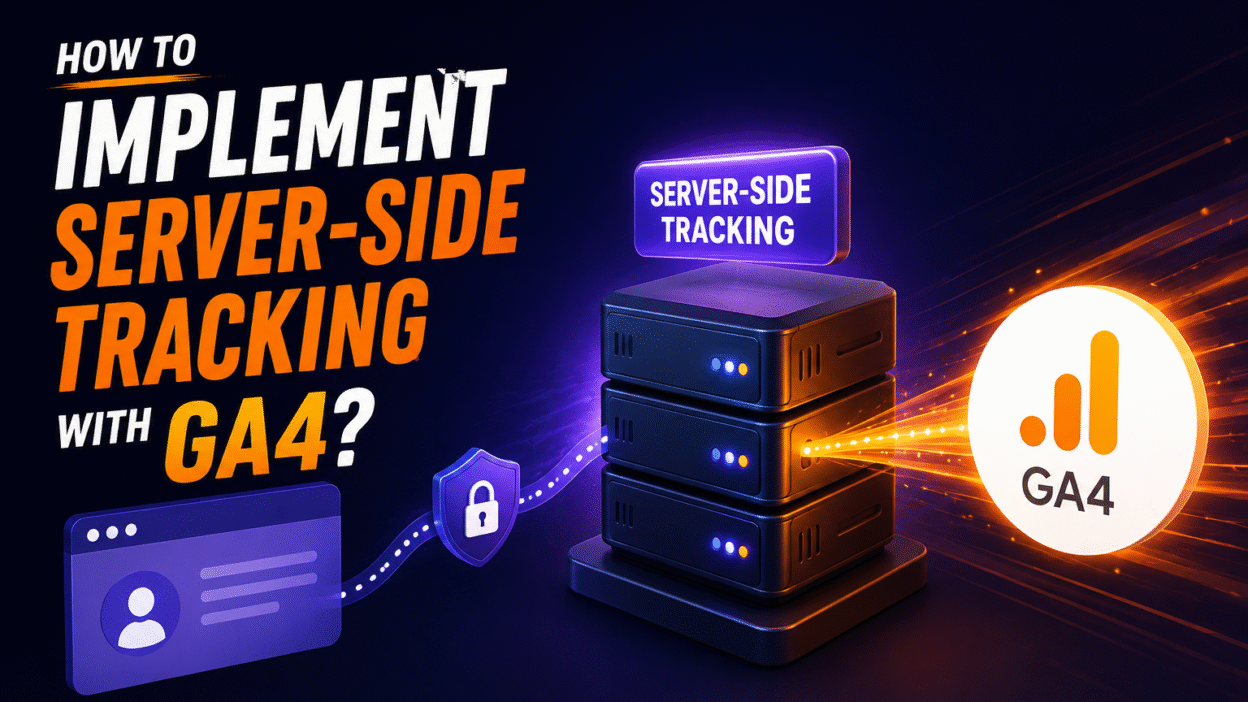
This modern world has gone to great levels in digital analytics. More so after implementing privacy regulations and browser restrictions, which are still evolving. In this ever-evolving environment, server-side tracking with Google Analytics 4 (GA4) has become a mighty game-changer for all the marketers and developers.
When we talk about the traditional practices, client-side tracking is the honorable one. An approach where the data gets collected directly from the user’s browser. This practice falls short against ad blockers, Intelligent Tracking Prevention (ITP) from Safari, and the third-party deprecations from Chrome.
Table of Contents
- Introduction
- Benefits and Use Cases
- Prerequisites
- Step-by-step Guide
- Testing and Debugging
- Best Practices and Recent Updates
- Common Challenges and Troubleshooting
Then comes our star, server-side tracking, which tends to turn the script by routing data via your own server first. This makes it a reliable mediator that cleans, enriches, and forwards events to GA4 more accurately. With this approach, there will be a big boost in data collection rates. Additionally, it also aligns with the General Data Protection Regulation (GDPR), the Digital Personal Data Protection (DPDP) Act, and other privacy laws by using first-party cookies. And these can last up to 2 straight years rather than ending up within 7 days under ITP.
Picture this as you are upgrading your leaky, broken bucket to a strong and sturdy pipeline. With this, you can capture more Google Analytics 4 events like the page views, purchases, and custom interactions, even if the client-side signal fails.
Benefits and Use Cases
Server-side tracking with GA4 has become essential for modern analytics setups because it aims to offer clear wins over traditional methods. And it provides the same. Let’s walk through the important points that make server-side tracking with GA4 the best:
- Higher Data Accuracy: It bypasses ad blockers and privacy tools successfully. Ending up collecting events by 10-20%. It is crucial for capturing Google Analytics 4 events like purchases on e-commerce sites. Additionally, it improves the conversion accuracy for Google Ads campaigns by reducing the loss of signal that is caused by the browser restriction.
- Extended Cookie Lifetime: This approach uses the first-party cookies that will last up to 2 years and will dodge Safari’s IPT limits and Chrome’s third-party cookie phase-out.
- Privacy Compliance: It aligns effortlessly with the GDPR, the DPDP Act, and the other consent management laws. With this, it will be easy for you to enrich data server-side without user distrust. And speaking of trust, combining consent mode with server-side tracking will help your business maintain measurement while respecting user consent preferences.
- Faster Page Loads: Offloads processing from browsers via Google Tag Manager (GTM) server containers, improving Core Web Vitals and user experience.
- E-commerce Powerhouse: This approach is perfect for online stores that focus on tracking page views, add-to-carts, and conversions amid high traffic and blockers. To recover the lost conversion signals, there are many companies who combine server-side GA4 implementations with the Meta Conversions API. This combination is also good for improving cross-platform measurement accuracy.
- App and Web Hybrid: These are ideal for mobile apps or sites with consent banners. Also, it ensures reliable GA4 signals in privacy-strict regions like India.
Clearly, these amazing perks make it a go-to for LinkedIn campaigns or Medium posts that drive traffic. Plus, by using improved data quality, you will have a more accurate attribution model. Because this will help marketers understand how different channels contribute to the conversions and revenue.
And as for the major benefit, i.e., privacy, it is important for the organizations to ensure that the personally identifiable information (PII) is properly managed. In addition to this, the data should be anonymized or excluded from analytics payloads in order to maintain compliance with privacy regulations.
Prerequisites
To avoid roadblocks, ensure you have the foundational pieces in place before diving into server-side tracking setup for GA4. You will be needing an active Google Tag Manager (GTM) web container that is already handling your client-side tags. Additionally, you will need a GA4 property with its Measurement ID (format: G-XXXXXX) that is ready to receive server-forwarded events.
The next step would be arranging a hosting for your GTM server container. For this, you can opt for Strape’s free tier, Google Cloud Run, or self-hosted servers. Also, opt in with region selection based on your audience, like Asia for Indian traffic. Creating a custom subdomain, like gtm.yourdomain.com, is also important. You can point it via CNAME records through DNS providers like Cloudflare to enable first-party cookies and to bypass ad blockers effectively.
You are primed for a smooth hybrid implementation with Google Analytics 4, GTM, and domain access sorted. An implementation that also respects the GDPR and DPDP Act while boosting data reliability.
Step-By-Step Guide
Step 1: Create Server GTM Container
Head to your GTM dashboard → Click on “Create Container” → Then click on the “Server” platform → Then manual or Stape setup. Note down your container ID and preview URL for GA4 events.
With this proxy it will be ensured that your Google Analytics 4 integration is GDPR-compliant.
Step 2: Host and Deploy Server Container
Next, you must host your GTM server container using Stape (free tier available), Google Cloud Run, or self-hosting as well. Also, do pick a region like Asia for Indian traffic. Then deploy the config by uploading the template, verifying status hits “Running,” and testing the preview URL.
This live proxy will ready your setup for GA4 event forwarding with GDPR and DPDP Act compliance.
Step 3: Configure Custom Domain
Moving further, set up a custom subdomain like gtm.yourdomain.com. For this, add a CNAME/A record in your DNS provider, like Cloudflare, pointing to the GTM server URL. Then update the server container setting with this domain in order to enable first-party cookies and ad-blocker bypass for GA4 events.
It is important to verify propagation for up to 48 hours and toggle CDN if offered. This will lock in the reliable Google Analytics 4 tracking compliant with the GDPR and DPDP Act.
Step 4: Set Up GA4 Client and Tags
Add a GA4 client (Web type) in your GTM server container. You can do this by enabling default paths and JavaScript-managed cookies. Then create a GA4 tag that inherits the Measurement ID (G-XXXX) and event name, triggered by all GA4 client events. This GA4 server container can then forward the events using the Google Analytics Measurement Protocol. This process will ensure a reliable server-to-server event delivery.
This will route Google Analytics 4 events reliably by also supporting GDPR and the DPDP Act via server-side processing.
Step 5: Update Web Container
Edit the Google Tag config in your GTM web container. Add the server_container_url parameter with your custom tagging URL, which can be like gtm.yourdomain.com. Then replace the gtm.js domain via a custom loader to bypass ad blockers for GA4 events.
Then you can publish the changes. This hybrid setup will forward client events to your server proxy. And will ensure Google Analytics 4 accuracy under the GDPR and DPDP Act.
Testing and Debugging
To monitor the event flow you must enable GTM server preview mode and GA4 DebugView. Also, check the browser’s Network tab for requests hitting your custom URL, like gtm.yourdomain.com, instead of default endpoints.
Then verify the first-party cookies (FPID) to show extended lifetimes and no duplicate GA4 events; also check the data layers for a clean proxy handoff. Then fix issues like failed hits by reviewing server logs or DNS propagation.
This setup will confirm your Google Analytics 4 setup captures reliable data while meeting GDPR and DPDP Act standards.
Best Practices and Recent Updates
You must follow a hybrid model. Use both server-side and client-side tracking, server-side for critical GA4 events like purchases and client-side for real-time signals. This will avoid data inflation from dual properties. Use Google Signals support and regional data centers, like Asia, for faster processing in India.
Eliminate unnecessary tags on the server side to reduce costs. Many updates were added in late 2023 and onwards, including pausing tags, better first-party cookie handling, and Google Cloud integrations for scalability. Always enrich events, such as adding user IDs, before forwarding to improve the accuracy of Google Analytics 4. In order to improve the conversion matching and the attribution, businesses can implement enhanced conversions with the server-side tagging.
These practices will ensure GTM setups stay GDPR- and DPDP Act-compliant even after the evolution of browser policies like Chrome’s cookie changes. Additionally, there are many organizations that export Google Analytics 4 data to BigQuery for advanced reporting and analysis. This method deepens the event analysis, enables attribution insights, and activates first-party data.
Common Challenges and Troubleshooting
There are a few challenges that you might face. Hence, you need to watch for data gaps if events bypass the proxy. How? You must ensure server_container_url routes fully and not in parallel to the client side.
Are you facing delays in custom domain verification? Then check the DNS propagation and server logs for CNAME errors.
Self-hosting may cost somewhere around $40/month on Google Cloud, so use Stape’s free tier to start. Are you facing duplicate GA4 events? Then disable the client sending post-setup.
Also, tackle these with GTM preview, GA4 DebugView, and logs to maintain GDPR/DPDP Act-compliant Google Analytics tracking.