
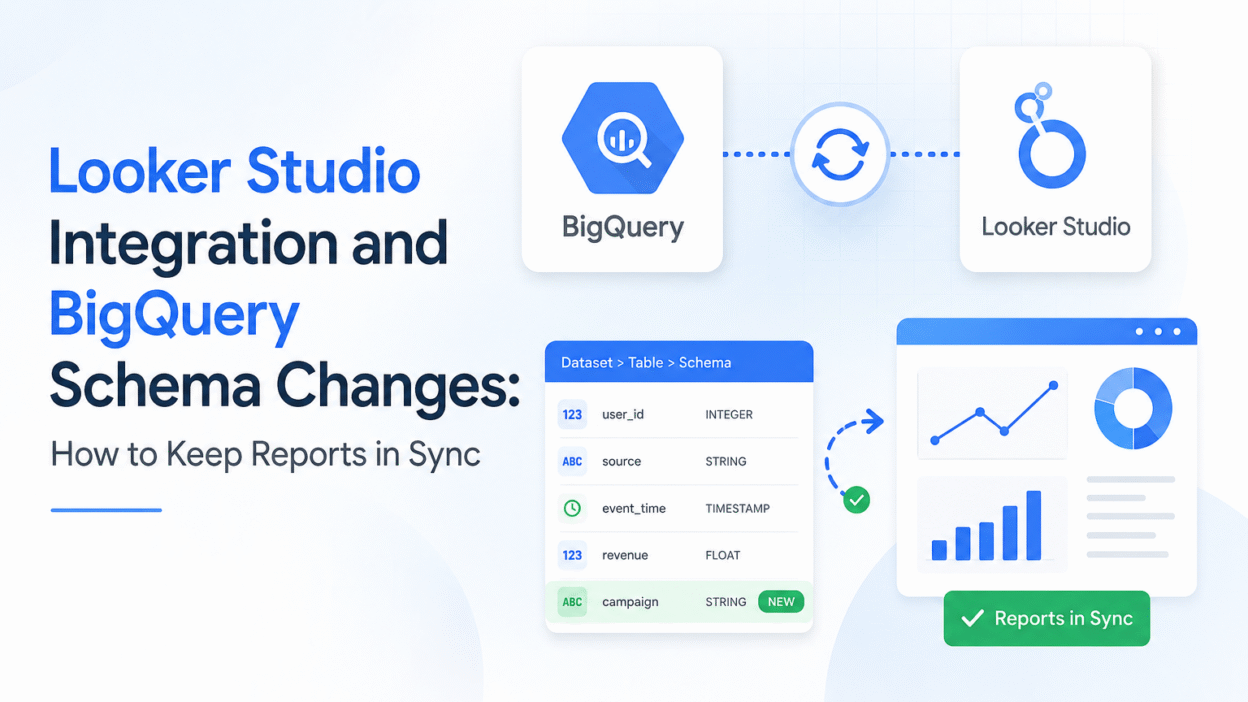
Looker Studio and BigQuery are a great duo. They both work well together. However, the connection is only as stable as the schema working behind it. Let’s say you decided to add fields, remove one or more, rename the same, or reorder in BigQuery. Looker Studio won’t detect those additions or schema changes automatically. You will have to manually refresh the fields to stay in sync.
BigQuery is a part of Google that manages analytics data warehouses. And Looker Studio can connect to a BigQuery view, table, or custom SQL query in order to visualize that data. With this process, the integration becomes useful for dashboards. However, this also means that schema changes in the source can affect the charts, calculated fields, and the report configurations.
Table of Contents
- Introduction
- How Looker Studio connects to BigQuery
- What counts as a BigQuery schema change
- How schema changes affect Looker Studio reports
- How to refresh fields in Looker Studio
- How to manage schema changes in BigQuery
- Handling custom SQL connections and renamed fields
- Best practices to prevent dashboard breakage
- Conclusion
How Looker Studio connects to BigQuery
There are three main ways through which Looker Studio connects to BigQuery.
- A table
- A view
- Or a custom SQL query
These three ways matter because each of these connection types behaves a bit differently when your schema changes. This aspect is especially important if you are using custom SQL with renamed or derived fields.
BigQuery is a managed analytics data warehouse; hence, this platform itself is often the source of truth for dashboards and reports. And if practically explained, this concept simply means that the report structure in Looker Studio is dependent upon the fields that are supplied by the BigQuery source. Also, you need to keep those fields in sync as the schema grows.
Let’s understand this principle with an example. Say you added a new column to your BigQuery table. Now, your Looker Studio report might not reflect that change immediately. Hence, most of the time you will have to manually refresh the data source, and then the new field will appear in charts and controls.
What counts as a BigQuery schema change
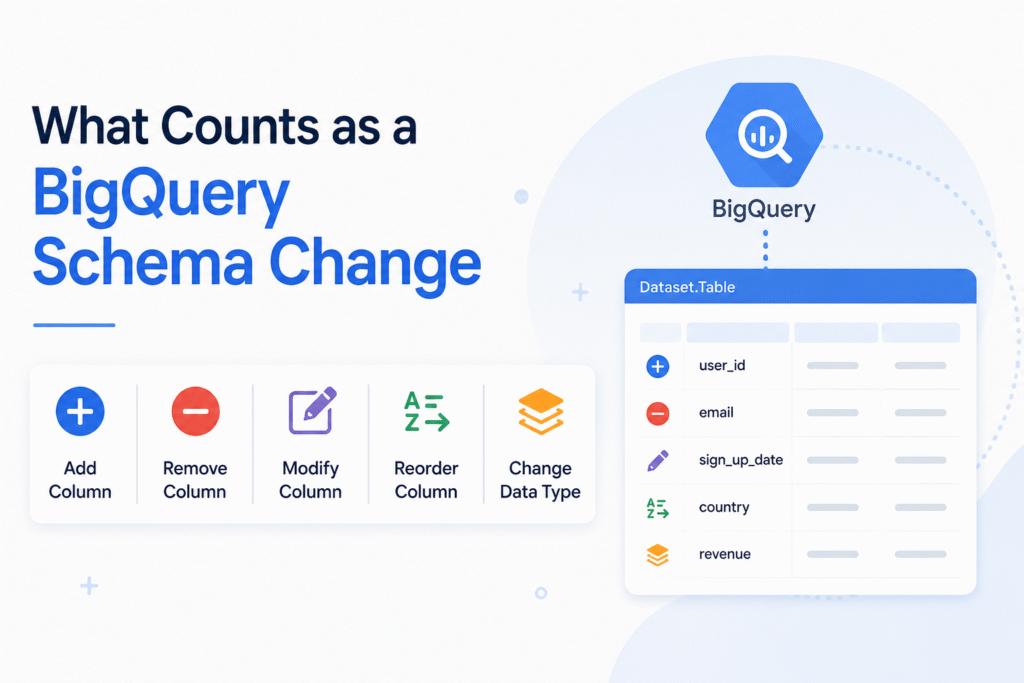
In BigQuery, schema changes are usually straightforward. But these changes matter because Looker Studio depends on the fields exposed by the source. Through BigQuery, you can simply add columns to an existing table. Additionally, its schema updates do not cause data loss. However, the changes like data added, removed, renamed, or reordered fields still affect how the reports behave downstream.
Let’s say BigQuery has the main structure and Looker Studio is the one consuming that structure in order to produce charts and controls. So, now, if the structure changes, there are chances that Looker Studio may retain the old field state until you refresh the data source fields manually.
There are a few key Google properties needed in this scope, and those are BigQuery, Looker Studio, data source fields, tables, views, custom SQL, and schema modifications. Those are the essential aspects that help you understand why a report could break even while the data is still in BigQuery.
How schema changes affect Looker Studio reports
Looker Studio does not automatically identify schema changes in your data source. In BigQuery, if you add, remove, rename, or reorganize fields, report editors must refresh the data source fields in order for Looker Studio to reflect the new structure.
Refreshing fields adds new columns to the data source, removes fields that are no longer present from the data source, and considers renamed fields a new field instead of an update to the previous name. That’s why a graphic can break even if the data’s still there in BigQuery.
For teams that consume the data, the practical rule is simple: Treat schema changes like a maintenance activity, not a background update. If the database structure changes, evaluate the associated Looker Studio reports and update any charts and computed fields that use the old field names.
How to refresh fields in Looker Studio
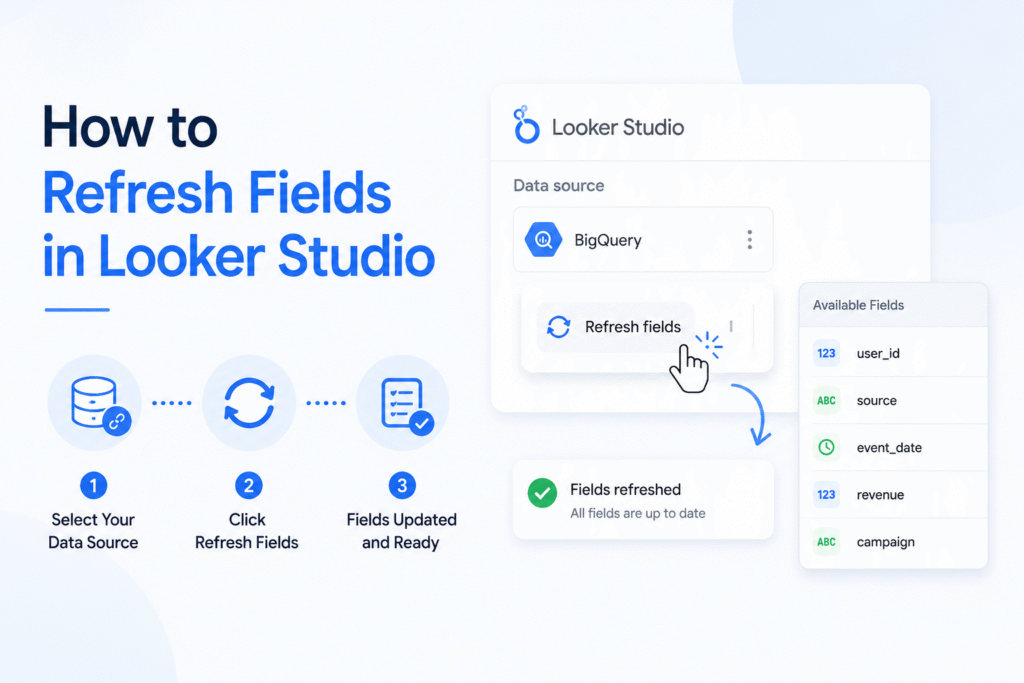
Schema updates are doable with BigQuery. The important point is that updates should be intentional. You can add columns to an existing table. BigQuery says schema upgrades do not cause data loss; however, new columns get appended to the end of the schema, not placed in the middle.
This is important for Looker Studio users, as the report reads the BigQuery structure as is in the source. If you add or rename a field in BigQuery, you might need to refresh the associated Looker Studio data source for the new field to display or the old field to disappear.
This is why schema planning matters for your dashboards. If a team changes column names too often, the report layer will need to be updated more regularly, too, increasing the likelihood of broken charts and calculated fields.
A basic practical guideline is to keep the BigQuery schema constant whenever possible and add new fields rather than modifying existing ones, unless the update is really needed. This works with both BigQuery’s schema behavior and Looker Studio’s manual refresh methodology.
How to manage schema changes in BigQuery
If BigQuery schema changes are not reflected in reports, Looker Studio reports start to indicate configuration issues or missing columns. If you rename a field, Looker Studio considers it to have been removed and a new field added. Charts and calculated fields that use the old name may break unless you fix them.
The main step to sync Looker Studio back is by refreshing the data source fields. The data source may have new fields or removed fields, or old reports may still need some human work if they point to fields that no longer exist once the data source is refreshed.
That means you should be careful with schema changes in BigQuery, particularly for tables or views that are used as data sources in dashboards for many people. While the underlying data is still intact, a minor modification to the source can cause visual problems in the reporting layer.
Handling custom SQL connections and renamed fields
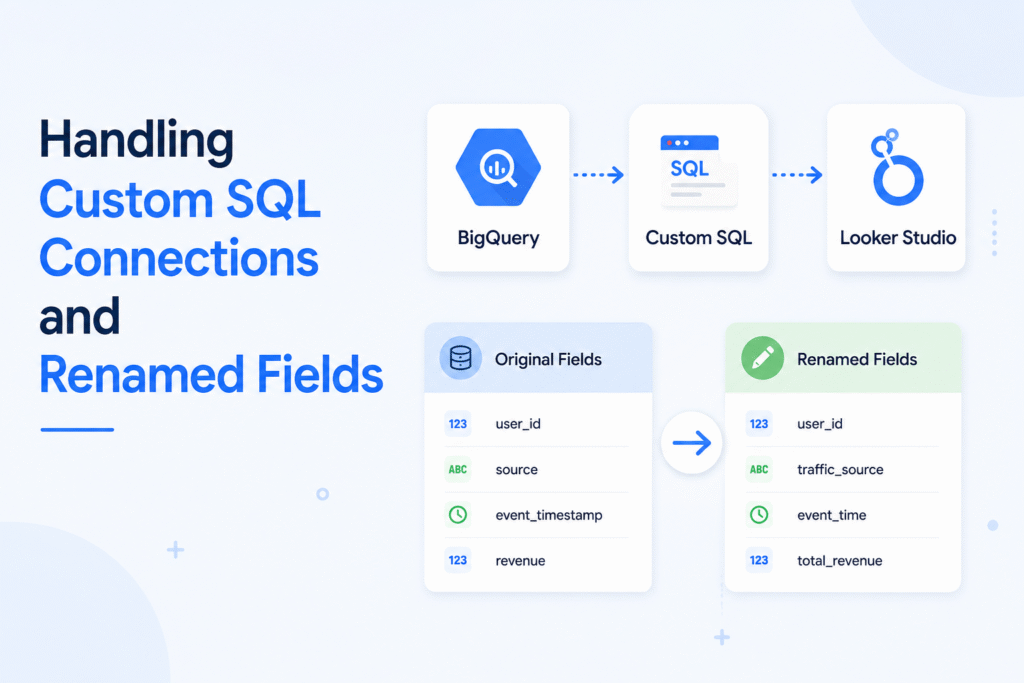
Custom SQL connections require some more attention since Looker Studio sees the output of a query as a virtual table. If you alter the SQL so that it returns different fields, Looker Studio may not automatically maintain the old field structure in sync, and you may need to manually refresh the data source fields.
This is much more significant when a field is renamed in the query. When you rename a field in Looker Studio, it treats it as if the old field was deleted and a new one was added. This means that charts and calculated fields that depend on the old name can break until you update them.
Another typical problem with bespoke SQL is duplicate field names. Per Google’s Looker Studio guidelines, you cannot have duplicate column names in custom join queries; therefore, it’s better to use clear aliases with AS and keep field names unambiguous from the start.
A basic example is a query that joins two tables that have the same column names. If both tables are returning names or IDs, you should rename them in the SQL itself before connecting the query to Looker Studio. The report layer performs best when each column has one distinct identity.
Best practices to prevent dashboard breakage
The best method to avoid dashboard problems is to maintain a stable BigQuery schema and utilize explicit field names from the outset. When you need to edit a field, treat it as a scheduled update so you can check the linked Looker Studio reports before your viewers see broken charts or missing data.
If you are using Looker Studio, then any schema upgrade means you will need to refresh your data source fields and then verify computed fields, chart setups, and filters that depend on renamed or removed columns. This is especially the case for custom SQL connections, where the output of the query is like the schema that Looker Studio sees.
As a general rule, add new fields, and avoid modifying existing fields if possible. This results in cleaner integration, fewer manual repairs, and simpler maintenance of reports by teams as the BigQuery model changes.
Conclusion
Looker Studio and BigQuery can function really well together. But this only works if the schema is kept in sync with the report layer. Looker Studio does not auto-detect changes to BigQuery fields, so some of the typical report maintenance is “updating data source fields” and reviewing dependent charts.
The safest way is to keep the field names steady, use unambiguous aliases in the custom SQL, and view schema upgrades as planned changes rather than surprise edits. Your dashboards will be readable, your calculated fields will last longer, and your reporting configuration will be easier to maintain as your dataset grows.