

You create UTM parameters and you tag your newsletters, social posts, and banners, but your GA4 reports are still messy. Traffic Seems Direct, Campaign Names Are All Over the Place, and You Can’t Tell Which Channel is Really Working.
The problem is not with the UTM tags themselves, but with the way they are used in real life. Small mistakes like having server redirects strip your parameters or using inconsistent source names can break your campaign tracking and UTM parameters in ways that are hard to spot.
This guide covers the nuts and bolts of campaign tracking, including common UTM mistakes, how redirects and link shorteners can break your data, and how to validate everything in Google Analytics 4 (GA4). Additionally, with this guide you will also understand how Google Analytics processes campaign data, helps ensure your UTM strategy, and produces reliable reporting.
If this is your first time using UTMs, see our beginner’s guide: A Marketer’s Guide to Campaign Tracking & UTM Parameters.
Table of Content
- Introduction
- What are UTMs and their basic parameters?
- Common UTM Errors to Avoid
- How Redirects and Server-Side Behavior Can Break Your UTM Tracking
- How to Review UTM Data in GA4
- Why this matters to marketers
What are UTMs and their basic parameters?
UTM parameters are tiny tags you add to URLs to tell GA4 where your traffic is coming from. The three basic parameters are the following:
- utm_source: Where traffic came from (newsletter, linkedin, instagram)
- utm_medium: Traffic type (email, organic_social, display)
- utm_campaign: spring_sale_2026 Campaign name
You can also add utm_content for different creatives and utm_term for paid search keywords.
In GA4 these are
- utm_source → media
- utm_medium → Medium
- utm_campaign → Campaign
This post assumes you know the basics and covers what goes wrong and how to fix it.
Common UTM Errors to Avoid
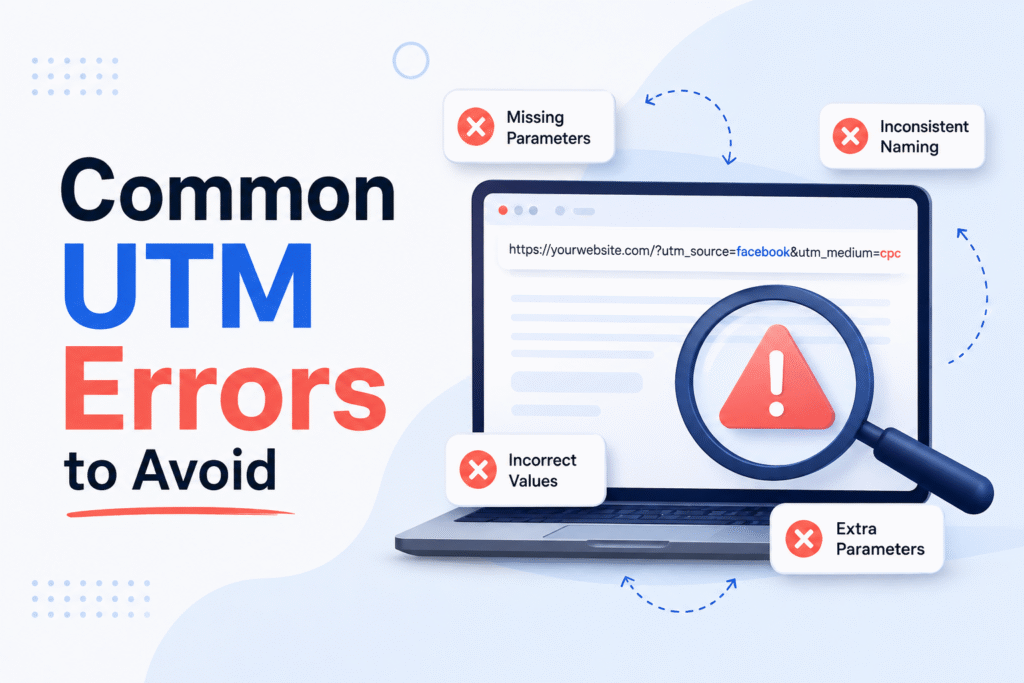
Even if you use the appropriate parameters and naming standards, little mistakes can sabotage your campaign tracking and UTM parameters in insidious ways.
Here are the biggest pitfalls and how to avoid them.
- Allowing redirects to remove your UTM parameters
One of the biggest issues is when you put UTMs on a link that then gets redirected. Many tools will shorten links or route traffic through their servers before sending users to your final destination. If those redirects aren’t setup to preserve parameters, your UTM tags can be dropped altogether before the request reaches Google Analytics 4 (GA4).
Typical situations include:
- URL shorteners (bit.ly, bespoke short domains, etc.) that bypass UTMs
- Email / marketing platform link masking that rewrites URLs
- Server-side redirects that reconstruct the URL and ignore query parameters
When this occurs, GA4 counts the visitor as direct or unassigned, even though they clicked through from a newsletter, social post, or banner. And this results in inaccurate attribution, weakened marketing attribution, missed traffic, and broken campaign attribution.
To prevent these problems:
- To verify your final URLs, use GA4 DebugView or browser developer tools to ensure UTMs are still being appended after any redirection.
- Test your final URLs, and ensure your UTMs are retained after redirection, with tools like GA4 DebugView or browser dev tools.
- Use the native tracking URLs from your ad networks when possible, instead of adding additional UTMs on top of shorteners.
Make sure that your server or redirect rules pass query parameters when forwarding traffic.
- Using inconsistent source/medium names
Even with lowercase rules, teams frequently stray into slightly different names:
- utm_source=linkedin versus utm_source=linkedin_post
- utm_medium=social versus utm_medium=organic social
- utm_source=email or utm_source=newsletter
This builds up your rows in GA4 over time and makes it harder and harder to answer basic questions like “How much traffic came from LinkedIn?” or “What’s our email performance?”
Solution: Create a small list of sources and mediums that you all agree on and stick to that. Train your team to use those values exactly.
- Using UTMs for internal links
Adding UTM parameters to links on your site (for example, linking from your homepage to a blog post) will override the original source and medium. So if someone came from a newsletter, clicked a tracked internal link, and then converted, GA4 might attribute the conversion to your internal link.
Fix: Don’t utilize UTMs on internal navigation. Only tag URLs that are sending traffic from outside your site.
- Overly complicated UTM strings
Some marketers try to cram the UTMs with everything and get long strings with plenty of problems. Some systems are more likely to break large strings, truncate them, or confuse team members.
Just remember to keep your UTMs basic and focus on the main characteristics you need: source, medium, campaign, and sometimes content.
- Not Analyzing UTM Data in GA4
Many teams finally installed UTMs but never validated if they were operating correctly. If you fail to validate your setup, this means you may not notice that your parameters are not firing, are being stripped, or are inconsistent. And this can be done in any way; whether your tracking is directly implemented or via Google Tag Manager, validation is a must.
How Server-Side Behavior & Redirects Can Ruin Your UTM Tracking
When a user clicks on a UTM-tagged link, the request typically goes through several steps:
- Click on a shortened URL or campaign link
- Redirect to your domain
- Potential other redirects (HTTP to HTTPS, www to non-www, country redirects)
- Last page load in GA4
If at any of these steps the server or redirect logic rebuilds the URL without preserving the query string, then your UTM parameters disappear.
Common causes
- Redirect rules that preserve only path, not query string
- URL Replacing link cloaking
- CDN or WAF rules rewriting URLs
Things to check
- Click your UTM-tagged link, and then after all the redirects have taken place, check the address bar in your browser. If the UTMs are missing, the problem lies in the redirect chain.
- Click on your UTM tagged link and look at the browser address bar after all redirects. If UTMs are missing, the problem lies in the redirect chain.
- See the final URL being requested by using the browser developer tools -> network tab
Make sure your developer passes query parameters on every redirect. This is an important part of reliable campaign tracking and UTM parameters.
How to Review UTM Data in GA4

Expanding your campaign tracking and UTM parameters is only part of the equation; you also need to make sure your tags are firing appropriately to Google Analytics 4 (GA4) and that they’re showing up correctly in your reports.
- Try in real time with GA4 DebugView
The quickest approach is using DebugView to confirm your UTMs before launching a campaign.
How to use:
- Open your GA4 property. Go to Admin > DebugView.
- Click on a link with a UTM tag on your site or app (or mimic a click in a test environment).
- Open DebugView and watch the stream of events for the page_view event.
- Expand the event and check parameters. That is, the source should be equal to your utm_source, the medium should be equal to your medium, and the campaign should be equal to your utm_campaign.
If you see the right values here, you are capturing your UTMs. If you see (direct) or (none), something is stripping/overwriting the parameters.
- Review acquisition traffic reports
As the data starts to roll in, the first place to look for UTM data is in the Traffic Acquisition report.
- Navigate to Reports > Acquisition > Traffic acquisition.
- Set the primary dimension to session source/medium or source and medium independently.
- If you wish to see campaign-level details, add a second dimension like Campaign.
You should see:
- Your newsletter as a newsletter/e-mail
- Your social post as LinkedIn/organic_social, Instagram/organic_social, etc.
- Your banners as homepage_banner/display or whatever your configuration is
If you instead see largely (direct)/(none), then return to your redirecting and tagging habits.
- Use Explorations to dive deeper
With GA4’s Explorations, you may create custom reports using UTM dimensions:
- Make it a free-form investigation with rows of Source, Medium, and Campaign.
- Include analytics like users, sessions, engagement rate, and conversions.
- Filter by your campaign name to see performance on a given newsletter, social push, or banner.
This is very helpful when comparing several campaigns or channels.
- Spot check your final URLs
A simple but powerful practice is to spot-check a few live links:
- Enter your UTM-tagged URL into a browser.
- Confirm that the whole URL, including query parameters, is being requested by using the browser’s developer tools or a network tester.
- Every redirect has to go through the query string.
If the parameters are missing after the redirect, then your server or URL shortening service is likely stripping them.
- Monitoring data quality throughout time
Conduct regular audits of your GA4 reports for:
- New and abnormal source or media entries (which point to inconsistent naming)
- Split or repeated campaign names
- Unusual (direct) / (none) traffic surges from known campaigns
Catching these issues early allows you to fix your naming conventions, update templates, and adjust redirect rules before they cause severe distortion of your campaign data and UTM parameters. When done right, this validation loop can help you maintain accurate, consistent, and useful UTM data in GA4 to make smarter marketing decisions.
Why this matters to marketers
Used correctly, campaign tracking and UTM parameters can transform vague traffic numbers into clear, actionable insights. You see which newsletters are engaging users, which social posts are driving traffic, and which banners are performing best. That’s how you convert intuition to data-driven decision-making.
Looking for the complete setup guide, including examples and naming rules? Get started with the beginner’s guide: A Marketer’s Guide to Campaign Tracking & UTM Parameters